
Things to try
Ideas for using Toby, grouped by situation. Each one lists what to connect first and what to ask. Copy the prompts as they are, or change the wording. Toby understands plain English.
Which feature should I use?#
Most of the time you just chat. Other features help when you find yourself asking for the same thing again and again.
| You want to… | Use | Example |
|---|---|---|
| Ask a question or get something done now | Chat | "What's on my calendar this afternoon?" |
| Have Toby do something automatically, on a timetable | Schedule | "Every weekday at 8am, summarize my unread email" |
| Have Toby remember a fact or preference | Memory | "Remember that I don't take meetings on Fridays" |
| Keep a document Toby can look things up in later | Library | "Keep this PDF in my library" |
| Keep the chats, notes, and files for one piece of work together | Project | A "Kitchen renovation" or "Q4 launch" project |
| Change how Toby writes or what it pays attention to | Persona | A short, to-the-point persona for quick triage |
| Teach Toby a procedure it should follow every time | Skill | "When I ask for a status update, use these four headings" |
| Put a one-click button or live card on your Home screen | Flow | A "Focus mode" button that turns off Wi‑Fi and hides windows |
| Capture a meeting or call | Recording | Record, then "Summarize this and list action items" |
Start your day#
When: first thing in the morning, before you open your inbox.
Connect: Email, Apple Calendar, and Apple Reminders or Todoist.
Give me a quick brief for today: my meetings, anything due, and the emails
that need a reply. Keep it short.
Make it automatic: ask Toby to schedule it:
Every weekday at 7:30am, give me a brief of today's meetings, tasks due, and
emails that need a reply.
Toby creates the schedule. The results appear in its run history each morning. Your Home screen also shows live Upcoming, Tasks, and Unread mail cards whenever you open Toby.
Get through your inbox#
When: your inbox has piled up and you want to know what actually matters.
Connect: Email.
Start a chat with the Mailman persona (click the arrow next to + in the chat toolbar, then Chat with Mailman). Mailman is built for inbox work.
Go through my unread email from the last two days. Group it into needs
attention, worth noting, and ignore.
Then follow up:
Archive everything in the ignore group.Draft a reply to the message from Acme saying we'll have feedback by Friday.Ask for a draft when you want to review a reply before it goes out. Say send only when you're sure.
Take notes in a meeting#
When: any call or meeting you'd rather listen to than type through, including Zoom, Teams, Meet, or an in-person conversation.
Connect: nothing. Allow the microphone and screen/system audio permissions the first time.
- Click the record button (●) in the toolbar when the meeting starts.
- Click it again when the meeting ends. Toby saves the recording and writes a transcript.
- Open Recordings, select the recording, and click Summarize.
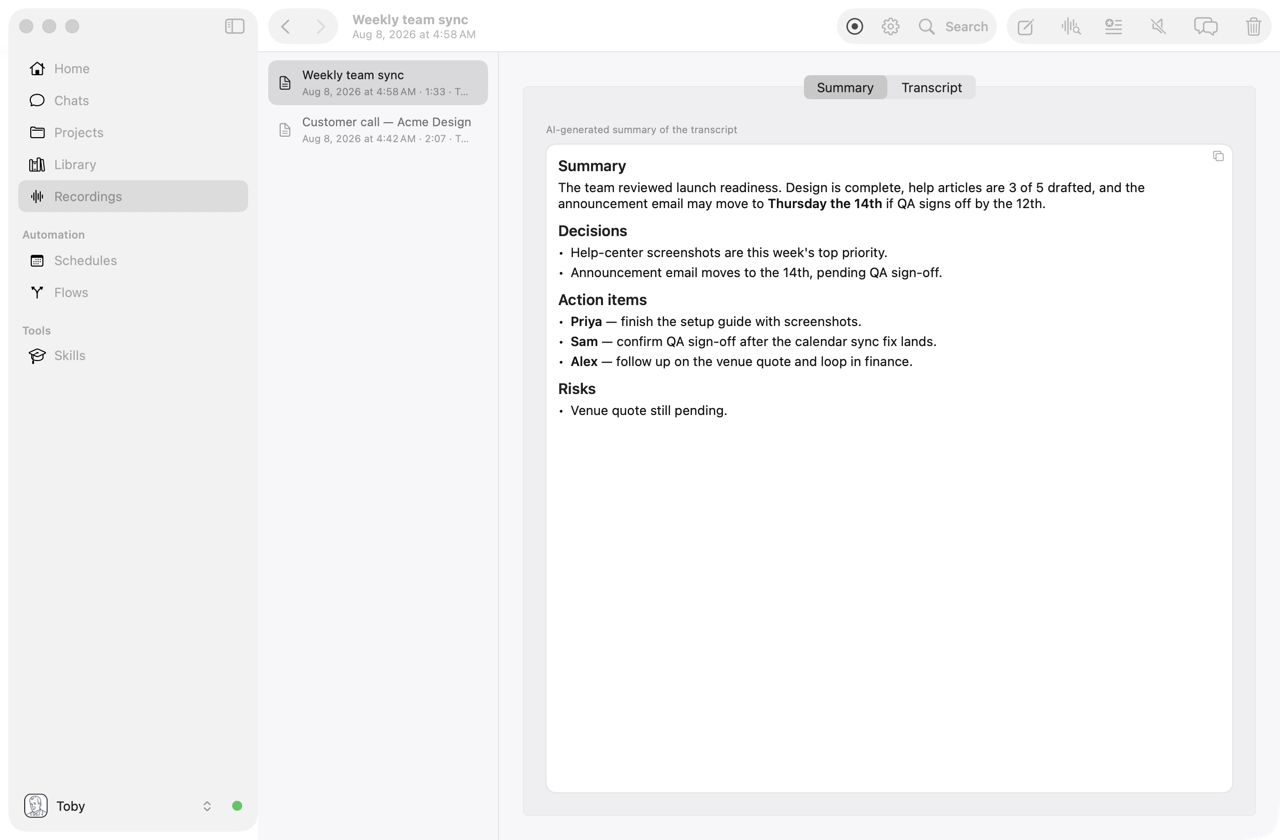
To go further, click the chat button in the Recordings toolbar to ask questions about the recording:
Turn the action items into reminders, due by Friday, with the owner's name in
each one.
Plan your week#
When: Sunday evening or Monday morning.
Connect: Apple Calendar and Apple Reminders or Todoist.
Look at my calendar and tasks for this week. Where do I have time for focused
work, and which tasks should go there?
Block two hours on Wednesday morning for "Write the launch plan".What's overdue? Move anything that isn't urgent to next week.Write a weekly status update#
When: you send the same kind of update every week.
Connect: Email, and Todoist, Jira, or Notion if your work lives there.
-
Create a project called Weekly updates (Projects → +).
-
Start a chat in the project and tell Toby how you like it written:
Create a skill for this project: weekly updates have three sections, Done, In progress, and Blocked. Use short bullets and name the people involved. -
Each week, in a new project chat:
Write this week's update from my sent email and completed tasks, and save
it to the project.
Saved updates go into the project's outputs folder, so you build a running history. To automate it, ask: "Every Friday at 3pm, write this week's update in the Weekly updates project."
Research something#
When: you're comparing options, checking facts, or reading up on a topic.
Connect: turn on Web Search (requires a Vercel AI Gateway key).
Search the web for the best-reviewed standing desks under $600 and compare
the top three in a table.
Read https://example.com/pricing and tell me what changed since last year.Attach a PDF with + and ask:
Summarize this lease. List the move-out notice period, fees, and anything
unusual.
To keep the document for later, say "Save this to my library." Weeks later, ask "What was the notice period in my lease?" and Toby finds it in your Library.
Remember what matters to you#
When: you find yourself repeating the same context to Toby.
Remember that I work 9 to 5 Eastern, prefer meetings after 10am, and keep
Fridays free for deep work.
Toby saves these as memories and uses them in future chats. For example, when it suggests meeting times or plans your week. Ask "What do you know about me?" to review them, or open View → Memories to edit them.
Focus mode for your Mac#
When: you need an hour without distractions.
Connect: macOS.
Turn on Do Not Disturb, turn off Wi‑Fi, and minimize all my windows.To make this a one-click button on your Home screen, ask:
Create a Home action called Focus mode that turns off Wi‑Fi and minimizes
all windows.
Toby builds a flow and adds it to the Actions strip on Home.
Keep up with your team in Slack#
When: you've been heads-down and need to catch up, or your team wants quick answers without opening your Mac.
Connect: Slack.
Summarize what I missed in #product since yesterday and list any questions
directed at me.
You can also let coworkers (or yourself, from your phone) @mention Toby in Slack and get an answer in the thread. See Chat surfaces.
Same question, different lens#
When: you want Toby to prioritize differently depending on your role or mood.
Create two personas in Settings → Personas, for example:
- Engineer: "Put technical threads, bugs, and incidents first."
- Manager: "Put deadlines, decisions, and anything blocking the team first."
Ask the same thing with each one, such as "What should I deal with today?", and you'll get answers that put different things first.