
Library
Library is Toby’s catalog of files it has seen: notes, documents, and images you add yourself, files you attach in chat, and files saved in a project. Toby keeps its own copy, writes a short description when it can, and lets you browse or ask about the file later.
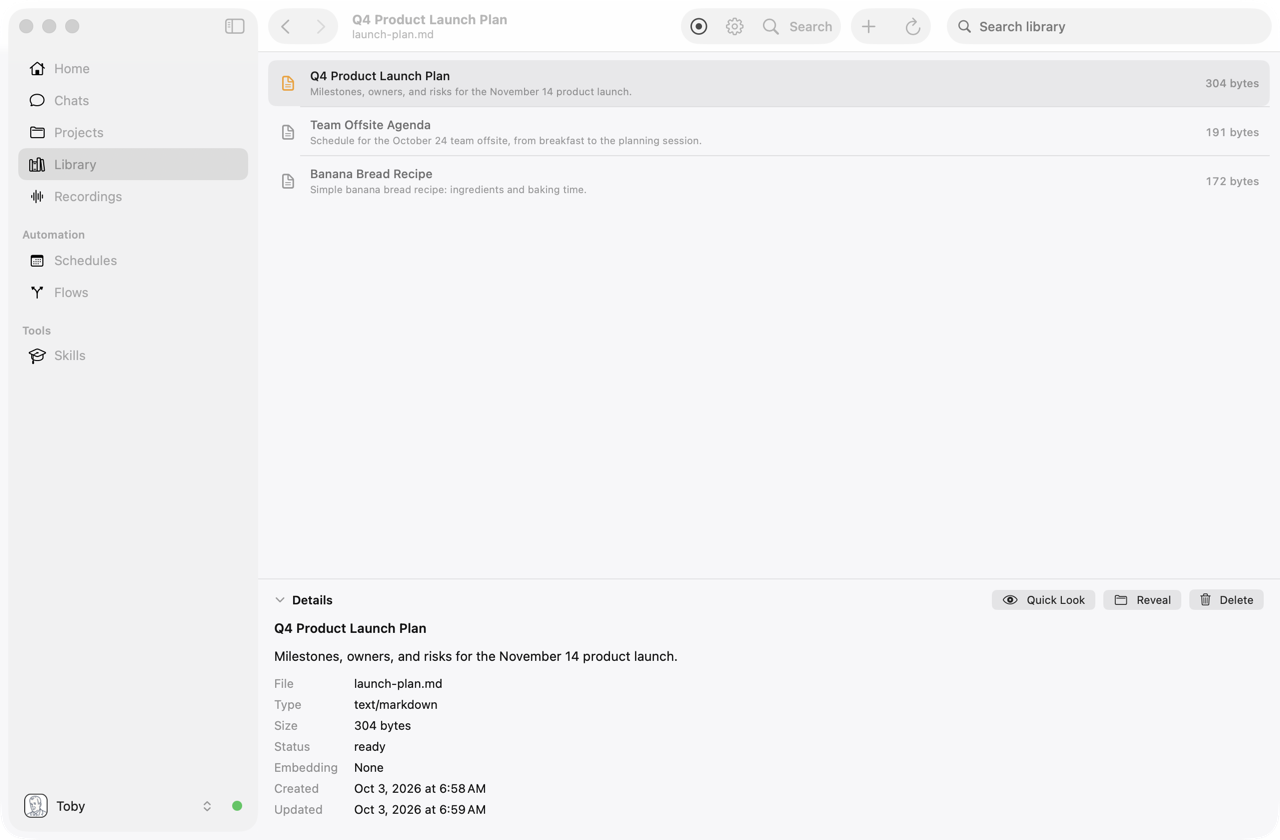
Use the Library for documents you'll want to ask about later: a lease, a user manual, a recipe, meeting notes, a screenshot of a receipt. Then ask "What's the notice period in my lease?" weeks later, without digging for the file.
Library is not a project folder and not a memory. Toby only looks in it when you ask, so it does not clutter every conversation. Ask Toby to find or add a file, or browse the list in the app.
A file you attach in chat, or save into a project, shows up here on its own. Adding the same file in more than one place keeps a single copy.
What you can add#
- Plain text and Markdown
- Images (PNG, JPEG, WebP, GIF)
The Add button rejects other types. Chat attachments and project files of other types are still listed so you can find them. Toby does not write a summary for those. Adding the same file twice keeps the existing item instead of creating a duplicate.
Project instructions and skills stay on their own screens. They are not copied into the library.
In the app#
Click Library in the sidebar (⌘0), or search for Open Library in the command palette (⌘K).
The workspace is searchable. Nothing is selected until you choose a file. In the upper-right toolbar, switch between a list and icons. Icons show each file as its icon, or a picture for an image, with the name underneath. That choice is remembered on this Mac.
In the list, each row starts with a small picture or file icon, then where the file was seen: Chat, Project, Library, or more than one of those. The filter in the toolbar limits either view to one of those places. Double-click a file in either view to Quick Look it.
A details bar at the bottom shows title, description, and Where it came from (the chat name, the project and path, or that you added it in the library). It also shows type, size, indexing status, and dates. Embedding stays None until Toby stores a search vector. That uses your default AI provider, including OpenRouter. Opening the library fills in files that were summarized before a vector could be saved. Chutes does not create embeddings. Use Add to import files, Refresh to reload and look for new chat and project files, Quick Look or Reveal for Toby’s copy, and Delete to remove that copy. Deleting here does not remove the file from a chat or a project.
Items that are still indexing show an outline while Toby writes the description. Failed items keep an error in the inspector. Icon view also labels those files Indexing or Failed.
In chat#
Ask naturally:
- “Keep this PDF in my library.”
- “What’s in my library?” / “List everything in my library.”
- “Find the lease in my library.”
- “Open that screenshot I saved last week.”
- “Remove the old draft from the library.”
Toby can list the whole catalog (documents and images) or search by keywords and meaning. Opening a document loads its extracted text; opening an image lets the model see the picture.
Where files live#
Copies are stored under ~/.toby/library/. Catalog rows live in the same database as chats (chat.sqlite). Extracted text is a sidecar file next to the original, not a second copy of the document in the database.
Summaries#
When you add a file, Toby uses a small model to write a short description (or an image caption). Choose that model in Settings → Library. It defaults to a cheap model on your usual AI provider.
Backup and sync#
Library files are included in File → Backup Toby Data… and in optional Settings → Sync → Data backups. They are not live-synced across Macs with settings sync. Restoring a backup replaces this Mac’s library from the snapshot.
Related#
- Memories — durable facts, not files
- Projects — scoped folders with their own chats and files
- Settings sync — what is (and is not) mirrored live