
Recordings
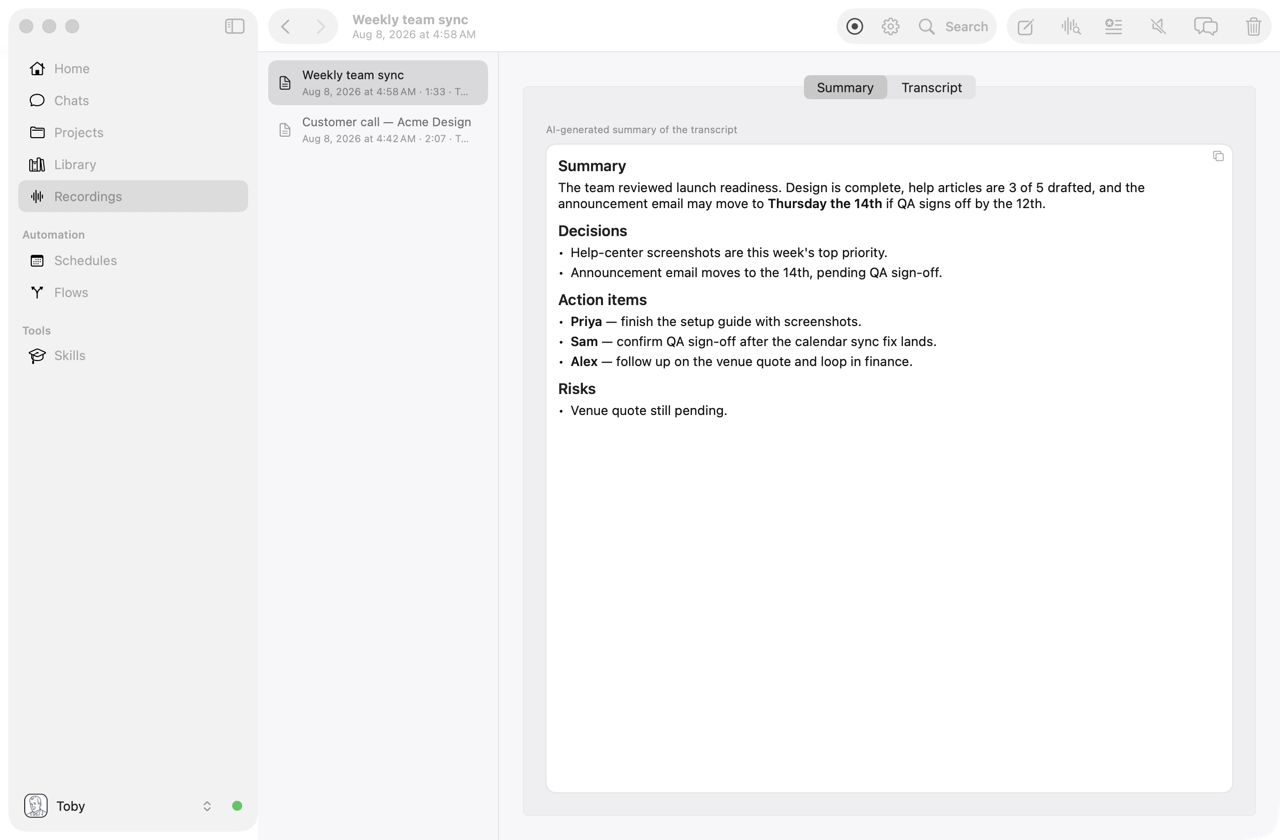
Toby can record meetings, calls, and voice notes, turn them into a transcript, and write a summary with decisions and action items. It records your microphone and the sound from other apps, so both sides of a Zoom, Teams, or Meet call are captured.
Quick start#
- Click the record button (●) in the toolbar. You can also start from the menu bar icon or a global shortcut you set in Settings → General.
- The first time, allow the Microphone and Screen & System Audio Recording permissions when macOS asks.
- Click the button again to stop. Toby saves the recording, writes the transcript, then writes a summary and a short title.
- Open Recordings in the sidebar. The recording uses that title instead of the date. Summarize is still there if you want a new summary.
Want to dig deeper? Click the chat button in the Recordings toolbar and ask questions such as "What did we decide about the launch date?" or "Turn the action items into reminders."
Let people know when you're recording a conversation. Recording laws differ by country and state.
Details#
How recording works#
Use Record Audio (or equivalent recording controls) in Toby.app. Capture runs inside the app so Microphone and Screen/System Audio permissions stay tied to Toby.app’s bundle identity.
While a recording is in progress, open Recordings in the sidebar and select the in-progress row to see live capture details and use Stop Recording there—the same stop action as the toolbar button and menu bar. Starting a recording while you are already in Recordings selects that take.
By default Toby records both your microphone and system audio (other apps such as meetings). You can turn either source off under Settings → Transcription (Record microphone / Record system audio).
For a live transcript, select Apple — On Device under Settings → Transcription → Provider, then start a recording. The active recording shows microphone and system-audio text as it arrives. Recent words may change before becoming final. Recognition runs on your Mac without an API key; the first use may download language assets before capture begins. See Transcription settings for language support and setup.
When you stop and save:
- Capture stops immediately. Long recordings then take a while to prepare final audio (especially when both mic and system tracks were captured). Toby shows a processing state — not the red live-recording indicator — on the toolbar, sidebar, menu bar, Dock, and Recordings window. Pressing Stop or Record again during this step does nothing; wait for the “Processing recording” toast to finish.
- Source tracks (
mic.wav/system.wav) and acombined.m4afile are written under the recordings folder. If both sources were captured, combined is stereo dual-mono (left = your mic, right = system audio)—not a mix that stacks both onto one channel (that causes echo from headphone bleed). Raw tracks are always kept. - Toby saves the finalized Apple live transcript, or requests transcription through the local service using your selected provider. A completed live transcript does not require another transcription pass.
- Once transcription succeeds, Toby deletes the recording's audio files by default (Delete audio after transcription, under Settings → Transcription). The recording entry, transcript, and any summary are kept; audio is kept instead when transcription fails or the setting is off. You can also delete just the audio at any time with Delete Audio in the Recordings toolbar (disabled when the recording has no audio). A recording without audio cannot be re-transcribed.
- Toby then writes a summary from the transcript and, when you have not
named the recording, a short title that replaces the date in the sidebar.
If summarizing fails, the transcript is still kept and the error is stored
with the recording. The result appears in the Recordings window
(transcript, summary, delete).
Opening a long recording shows the window title and date subtitle immediately;
the transcript, summary, and player fill in after a short skeleton so the window
stays responsive. Use Edit Recording to rename the take, inspect metadata,
and play audio. The player defaults to System (clean meeting audio) and
can switch to Mic or Both (L/R) when available. Summary and transcript
are separate tabs. When the transcription model returns timed segments, the
transcript tab shows start timestamps on each line (for example
[0:12] …); Copy transcript includes those times.
Summarize a recording#
Toby writes the summary automatically after you stop and the transcript succeeds. It also replaces the date title with a short name taken from that summary, unless you already named the recording.
To write the summary again, open the recording and use Summarize (or Re-Summarize if a summary already exists) in the toolbar, or the Summarize link on the Summary tab when no summary exists yet. That does not change a name you set. Toby generates a concise markdown summary with the persona you choose under Settings → Transcription → Persona for recording summaries (or your default persona). The summary is stored with the recording and shown on the Summary tab. While Toby is generating the summary, the Summary card shows a rainbow outline; if a summary already exists, that text stays visible until the new one arrives.
You can still start a chat about a recording for deeper Q&A.
Retry transcription#
If a recording failed to transcribe or you changed your transcription settings:
- Open Recordings in the sidebar.
- Select the recording.
- Use Transcribe / Re-Transcribe in the Recordings toolbar (or ask in chat to re-transcribe that recording).
Re-transcribing clears the old summary, then writes a new one from the new transcript. A name you already set stays as it is.
Permissions#
Depending on selected sources, macOS may request Microphone, Screen/System Audio Recording, and related permissions for Toby.app.
Transcription settings#
Provider, model, and API key for speech-to-text are under Settings → Transcription, along with the persona used for recording summaries. See Transcription.